Free normal map generator, from any image.
Drop a photo of a surface and get a normal map, with roughness and ambient occlusion maps alongside. It runs in your browser, so nothing is uploaded.
- No account
- Nothing uploaded
- No watermark
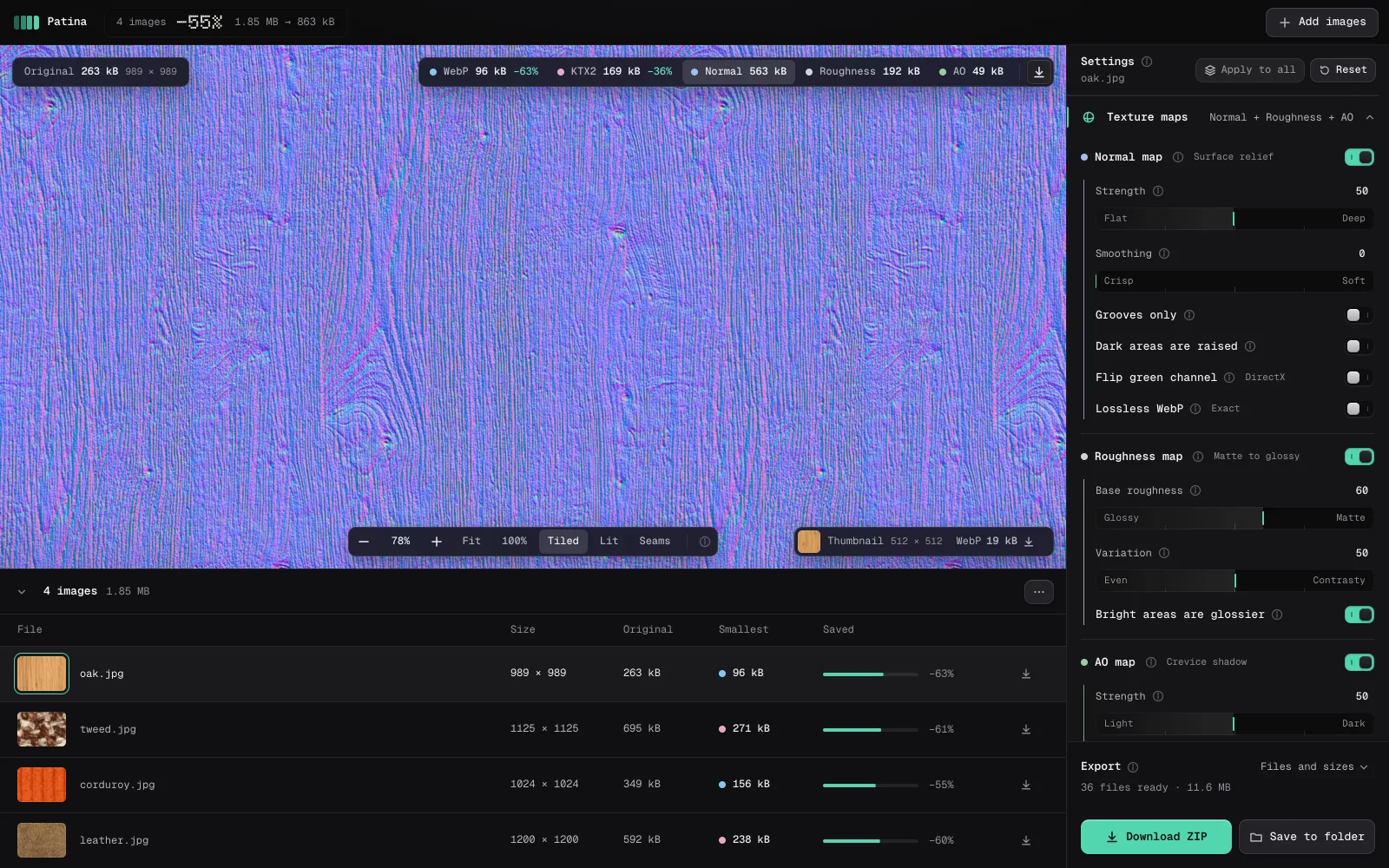
Three steps, one tab.
-
Drop an image
A JPG, PNG, WebP, AVIF or iPhone HEIC photo of the surface. A whole folder works too.
-
Turn on Texture maps
Patina derives the normal map from the image's brightness. Set the strength and smoothing while you watch the Lit view.
-
Download the set
Export the normal map with the colour, roughness and AO maps as JPG, WebP or KTX2, in one ZIP.
What a normal map does
A normal map stores, for every pixel, which way the surface faces. A renderer uses it to light flat geometry as if it had bumps, grooves and grain, without adding a single polygon. That is why almost every PBR material in Blender, Unity, Unreal, Godot or three.js has one.
Patina makes it from the image itself: brighter areas are read as higher, darker ones as lower, and the slopes between them become the normals. For wood grain, fabric, leather, stone and plaster that gives a convincing result in seconds. Switch Invert height on when the dark parts of your surface are the raised ones.
The settings, in plain words
- Strength
- How deep the relief looks. Start low; a subtle normal map almost always reads better under real lighting.
- Smoothing
- Blurs the height before the normals are made, so photo noise doesn't turn into sandpaper.
- OpenGL / DirectX
- OpenGL (green up) is the default and suits Blender, Unity, Godot and three.js. Switch to DirectX for Unreal Engine.
- Grooves only
- Only the parts below their surroundings get relief, the rest stays flat. Made for tiles, planks and bricks: seams and cracks, no bumps.
- Lossless WebP
- Lossy WebP halves the colour resolution, which is where a normal map stores its directions. Turn this on for exact normals at a larger file.
- Roughness & AO
- Generated from the same image: a greyscale roughness map and an ambient occlusion map that darkens the crevices.
Tips for a better normal map
- Shoot the surface straight on, in soft, even light. Hard shadows get baked in as fake depth.
- Use Even out lighting under Adjust first if one side of the photo is brighter.
- Make the image seamless before the maps, so the normal map tiles with it. Patina does this in the same pass.
- Check the result in the Lit view: move the pointer and the light follows it across the material.
Questions, answered.
Is this normal map generator really free?
Yes. No account, no watermark, no limit on the number of images. Everything runs on your own computer, so there is nothing to charge for.
Are my images uploaded?
No. The normal map is computed in your browser with Web Workers. Open the network panel while you work: no image leaves the page.
Which normal map format does Unreal use?
Unreal Engine uses DirectX normal maps (green down). Patina defaults to OpenGL, so flip the switch to DirectX before you export for Unreal.
Can I make a normal map from a texture I already have?
Yes. Any image your browser can open works, from a phone photo to a texture you already made seamless elsewhere.
Same editor, other jobs.
Your next material is one image away.
Open Patina, drop an image, and leave with a texture set. Free, private, and ready in seconds.